
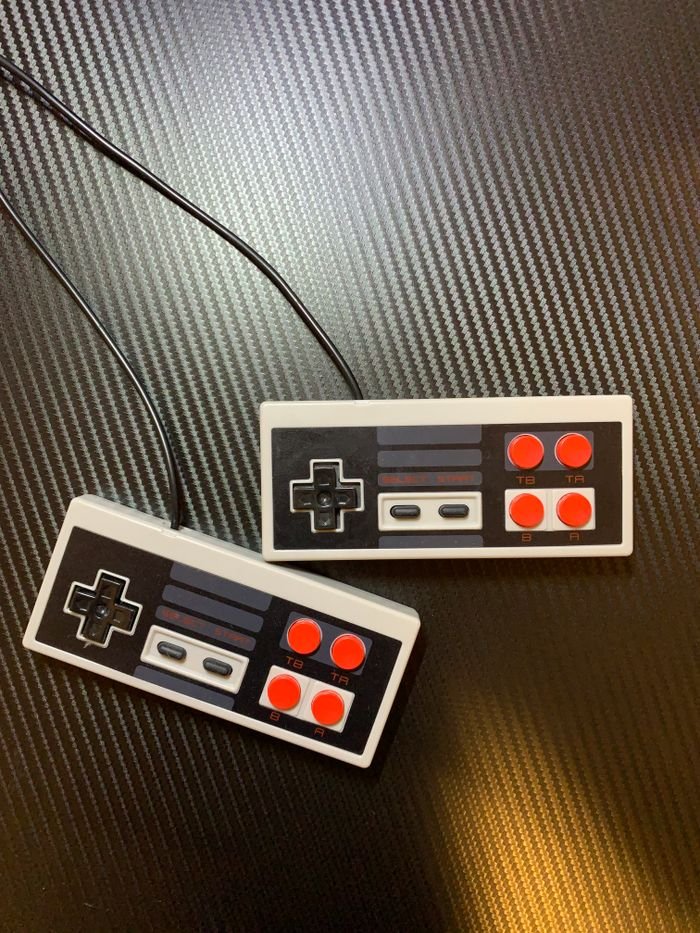

HSSGameStick manual settings are the key to getting the most from your retro gaming stick. This tiny HDMI console plugs straight into your TV and typically comes with wireless controllers, a memory card preloaded with retro games, and built-in emulators. The default settings work out of the box, but they don’t suit every TV or every player. This guide walks you through the manual settings that matter — display, controllers, audio, game library, and troubleshooting — so you can fine-tune the experience to your setup.
What Is the HSSGameStick?
The HSSGameStick is a compact, plug-and-play gaming console that connects directly to your TV’s HDMI port. Most versions include:
- Wireless gaming controllers
- A memory card preloaded with retro games
- Built-in emulators (software that imitates older gaming systems)
- HDMI plug-and-play connection
The system uses emulation software to run games from classic consoles. You plug it in, power it on, and the game menu appears — but the manual settings are where you take control.
Why Bother With Manual Settings?
Factory settings are designed to work on any TV, which means they’re rarely ideal for yours. Adjusting them manually can give you:
- The correct resolution and aspect ratio for your TV
- Reduced input delay and smoother gameplay
- Fewer controller connection issues
- A tidier, easier-to-browse game library
How to Open the Settings Menu
Manual settings live in the on-screen menu. To reach them:
- Plug the HSSGameStick into your TV’s HDMI port and power it on.
- Wait for the main game menu to appear.
- Use the controller to navigate to Settings or System Settings.
- Select it to open the manual adjustments menu.
The exact layout varies by device version, but the main sections — display, controllers, audio, and system — are consistent across models.
Display and Resolution Settings
Display is the single most impactful setting. Your options typically include:
- 720p resolution — best for smaller or older TVs.
- 1080p resolution — best for modern HD and 4K TVs.
- Aspect ratio 4:3 — the classic look, matching original retro displays.
- Aspect ratio 16:9 — fills modern widescreen TVs.
Choose the resolution that matches your TV’s native resolution, and pick the aspect ratio you prefer — 4:3 for authenticity, 16:9 to fill the screen. Getting this right ensures games look sharp rather than stretched or blurry.
Controller Settings
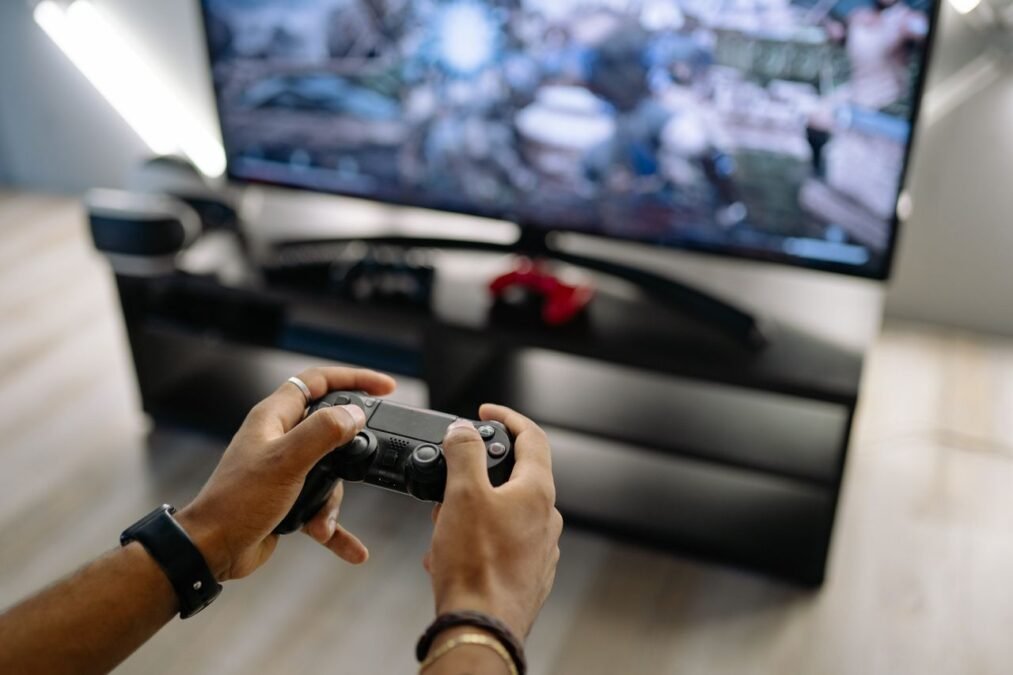
The controller menu usually lets you:
- Pair or reconnect wireless controllers
- Remap buttons to suit your preferences
- Adjust input sensitivity
Remapping is genuinely useful — some games use non-standard button layouts, and moving actions to comfortable buttons makes a real difference. If your controller keeps dropping connection or lagging, see our dedicated guide to HSSGamepad connectivity issues for fixes covering drops, lag, and pairing problems.
Emulator and Game Settings
Because the HSSGameStick runs games through emulators, you get options the original consoles never had:
- Save states — save and load at any point, even in games with no built-in save feature.
- Graphics filters — smoothing or scanline effects that change the retro look.
- Performance tuning — options that can help demanding games run more smoothly.
A word of caution: graphics filters can slow games down. If a game stutters after enabling filters, turn them off or switch to a lighter setting before changing anything. For detailed documentation on emulator cores and shaders, see the RetroArch docs.
Audio Settings
Audio is often overlooked, but the right setup adds a lot to retro gaming. Typical options include:
- Master volume
- Stereo/mono output
- Audio sync (latency adjustment)
If sound effects seem delayed behind the action, the audio sync setting is the fix — nudge it until sound and gameplay line up.
Organizing Your Game Library
With hundreds or thousands of preloaded games, finding what you want can be a chore. Use the library options to:
- Sort games by system (NES, arcade, etc.) or by genre
- Hide duplicate titles
- Build a favorites list for quick access
Some versions also let you add games via the memory card, though this depends on the model. A few minutes of organizing up front saves a lot of scrolling later.
Troubleshooting With Manual Settings
Many common problems are fixed in the settings menu, no reset required:
- Controller not responding: re-pair it through the controller settings menu.
- Game running slowly: disable graphics filters or try a different emulator core in the settings.
- No picture or wrong size: change the resolution and aspect ratio to match your TV.
- Audio out of sync: adjust the audio sync setting.
For persistent wireless controller problems — repeated drops, input lag, or pairing failures — our HSSGamepad connectivity troubleshooting guide and the complete HSSGamepad connectivity guide go deeper.
Tips for Best Performance
- Power the stick from a stable USB source — an underpowered port causes crashes.
- Keep wireless controller batteries charged; low batteries cause lag and disconnects.
- Set the resolution once to match your TV, then leave it alone.
- Don’t enable advanced emulator options unless you need them — defaults are the most stable.
HSSGameStick Manual Settings: Hidden Shortcuts & System Options
Beyond the main settings menus, the HSSGameStick manual settings hide a few shortcuts and system options worth knowing. These are the details that separate a quick setup from a properly configured stick.
- SELECT opens the settings list: On many models, pressing SELECT jumps straight to the settings list (language, button tone, file search, restore defaults) without navigating menus.
- SELECT + START opens the in-game menu: Holding both during play typically brings up the emulator quick menu for save states and per-game options.
- Language settings: If menus appear in the wrong language, switch it in system settings.
- Restore default settings: If tweaks make things worse, use the reset-to-defaults option to undo all manual changes at once.
- User profiles: Some models support multiple profiles, so each player keeps their own saves and favorites.
- Firmware updates: Check system settings for updates that fix glitches and improve compatibility.
- TF card safety: Always power off completely before removing the MicroSD card to avoid corrupting game data.
Frequently Asked Questions
What is the HSSGameStick?
A compact HDMI plug-and-play console that runs retro games through built-in emulators. It typically ships with wireless controllers and a memory card preloaded with games.
How do I access manual settings on the HSSGameStick?
From the main game menu, navigate to Settings or System Settings with your controller. The layout varies slightly by version, but display, controller, audio, and system sections are standard.
What resolution should I use?
Match your TV: 720p for smaller or older TVs, 1080p for modern HD TVs. Use 4:3 aspect ratio for an authentic retro look or 16:9 to fill a widescreen TV.
Why won’t my controller connect?
Try re-pairing it through the controller settings menu, and make sure its batteries are charged. For repeated drops or lag, see our HSSGamepad connectivity troubleshooting guide.
Can I add more games to the HSSGameStick?
Some versions support adding games via the memory card, but it depends on the model. Check your device’s documentation before buying additional storage.
Will changing settings break anything?
No. Manual settings can always be reverted, and most menus include a reset-to-defaults option if you want to start over.
Conclusion
Manual settings turn the HSSGameStick from a decent plug-and-play toy into a properly tuned retro console. Set the right resolution for your TV, configure your controllers, organize your library, and learn the save-state feature — those four steps cover most of w Mastering hssgamestick manual settings is what separates a frustrating setup from a console that just works.hat matters. And when something goes wrong, the settings menu (plus our troubleshooting guides) will resolve the vast majority of issues without ever needing a full reset.